WooCommerce Product Feed: Complete Setup Guide for Advertising Success
Learn how to create and optimize WooCommerce product feeds for Google Shopping, Meta, TikTok, and other advertising platforms. Complete guide with plugins, best practices, and troubleshooting tips.
If you’re running your store on WooCommerce, you’ve already got one of the most flexible, powerful platforms backing you. But here’s the thing: if you want to advertise on Google Shopping, Facebook, Instagram, TikTok, or Pinterest, you can’t just flip a switch. You’ll need a properly formatted product feed, and WooCommerce doesn’t hand you one out of the box.
A WooCommerce Product Feed is basically a file that takes all your product info and lays it out in a way ad platforms can actually understand. Get this feed right and your catalog ads will run smoothly across multiple channels, giving you the best shot at squeezing real return out of your ad spend.
This guide is here to walk you through everything you need to know about creating, optimizing, and managing WooCommerce product feeds so your ads actually perform.
What is a WooCommerce Product Feed?
Think of it as the translator between your store and the ad platforms. It’s a structured data file: usually XML, CSV, or TXT, that pulls product info from WooCommerce and packages it so platforms can read it. That one file is what powers:
Google Shopping (Google Merchant Center)
Meta (Facebook and Instagram catalog ads)
TikTok (TikTok Shopping)
Pinterest (Pinterest Shopping Ads)
Bing Shopping (Microsoft Advertising)
Snapchat (Snapchat Catalog Ads)
The feed contains essential product details including:
Product titles and descriptions
Images and pricing
Availability and stock status
Product categories and attributes
SKUs and identifiers (GTINs, MPNs)
Shipping and tax information
Unlike Shopify, which has built-in feed generation for some platforms, WooCommerce requires plugins or third-party tools to generate properly formatted product feeds.
Why WooCommerce Product Feeds Matter
WooCommerce powers more than a quarter of all online stores. That’s huge. But here’s the thing: all that flexibility comes with a bit of a headache when it comes to product feeds.
Get your WooCommerce feed formatted the right way and suddenly you unlock dynamic catalog ads across Google, Meta, TikTok, Pinterest, Bing, and more (without having to build ads for every single product by hand.) A clean feed means sharper targeting, automatic promotions when your inventory changes, and way better click‑through and conversion rates. Skip it, and you’re stuck with static ads while missing out on the automation that makes catalog campaigns scale.
How to Create a WooCommerce Product Feed
Method 1: Use a WooCommerce Product Feed Plugin
The fastest way is with a plugin built for feeds. Tools like Product Feed Manager for WooCommerce, WooCommerce Google Feed Manager, CTX Feed, or WP All Export let you map attributes, schedule updates, and export XML/CSV/TXT files without touching code. The flow is simple: install the plugin, create a feed for your channel, map WooCommerce fields, filter products, schedule updates, then host or upload the feed URL.
Method 2: Use a Feed Management Platform
If you’re advertising on multiple channels, juggling plugins gets messy fast. A feed management platform keeps everything in one place. You get one central feed, platform‑specific optimization, error detection, custom labels, and real‑time sync. Marpipe’s feed management platform connects directly to WooCommerce and spits out optimized feeds for Google, Meta, TikTok, Pinterest, and more… free, with no per‑product fees.
Method 3: Custom Development with WooCommerce API
If you want total control, you can build a custom exporter using the WooCommerce REST API. Pull products, transform them into XML/CSV, add channel‑specific fields, host the feed, and schedule regeneration. It’s powerful, but it takes ongoing engineering to keep up with platform changes.
Method 4: Manual Export and Formatting
If your catalog is tiny (under 50 products), you can manually export and format your feed. It’s not scalable, but it works if you’re just starting out.
Export products from WooCommerce (Tools > Export)
Open in spreadsheet software
Reformat columns to match platform requirements
Add missing required attributes manually
Save as CSV or convert to XML
Upload directly to advertising platform
Not recommended for: Regular updates, catalogs over 50 products, or multi-platform advertising.
WooCommerce Product Feed Optimization Best Practices
Map Product Attributes Correctly
WooCommerce uses different field names than advertising platforms. Ensure proper mapping:
WooCommerce Field → Feed Attribute
Product ID → id
Product Name → title
Short Description or Long Description → description
Permalink → link
Featured Image → image_link
Regular Price → price
Sale Price → sale_price
Stock Status → availability
Product Categories → product_type or google_product_category
SKU → id or mpn
Optimize Product Titles
WooCommerce product titles are often too short or vague for advertising feeds. Enhance them:
Original WooCommerce Title: "Running Shoes"
Optimized Feed Title: "Nike Air Max 270 Men's Running Shoes - Black/White, Size 10"
Title Optimization Tips:
Include brand (if not your own store brand)
Add key attributes (color, size, material, model)
Keep between 50–80 characters for best performance
Use natural language, not keyword stuffing
Don't include promotional text ("SALE!", "Free Shipping")
Many feed plugins allow you to create custom title templates using product attributes: [Brand] [Product Name] - [Color], [Size]
Handle Product Variations Correctly
WooCommerce variations (different sizes/colors of the same product) need special handling in feeds.
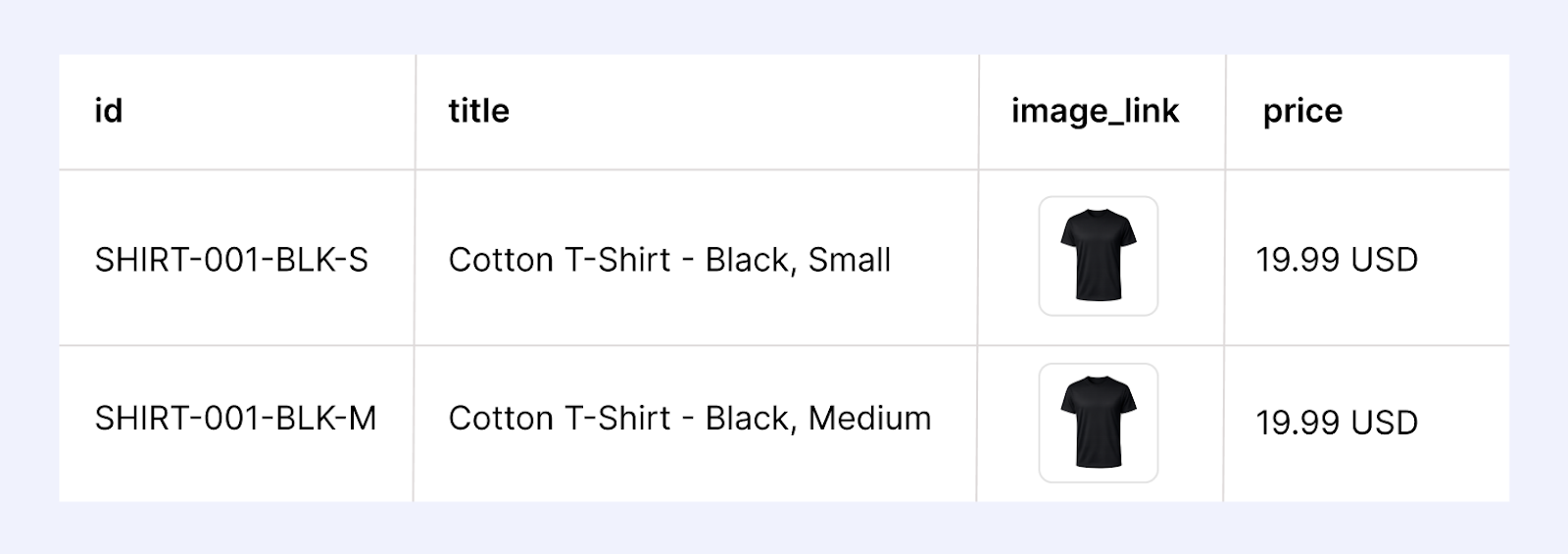
Option 1: Include All Variations Separately Each variation becomes a separate feed item with its own ID, price, and image. This gives maximum control but creates larger feeds.
id: SHIRT-001-BLK-S
title: Cotton T-Shirt - Black, Small
price: 19.99 USD
image_link: shirt-black-small.jpg
id: SHIRT-001-BLK-M
title: Cotton T-Shirt - Black, Medium
price: 19.99 USD
image_link: shirt-black-medium.jpg
Option 2: Use the Parent Product Only include the parent product with price range. Simpler but less precise.
id: SHIRT-001
title: Cotton T-Shirt
price: 19.99 USD
Best Practice: Include all variations separately for better performance, especially on Google Shopping and Meta catalog ads.
As a best practice, break out variants into separate items on your feed for better catalog performance
Add GTINs and MPNs
Many WooCommerce stores don't capture GTINs (UPCs, EANs, ISBNs) or Manufacturer Part Numbers during product setup. But advertising platforms require them for most product categories.
Solutions:
Add GTIN and MPN fields to WooCommerce using custom fields
Use plugins that add these attributes
Manually add for existing products
For custom/handmade products, include identifier_exists= false
Optimize Product Images
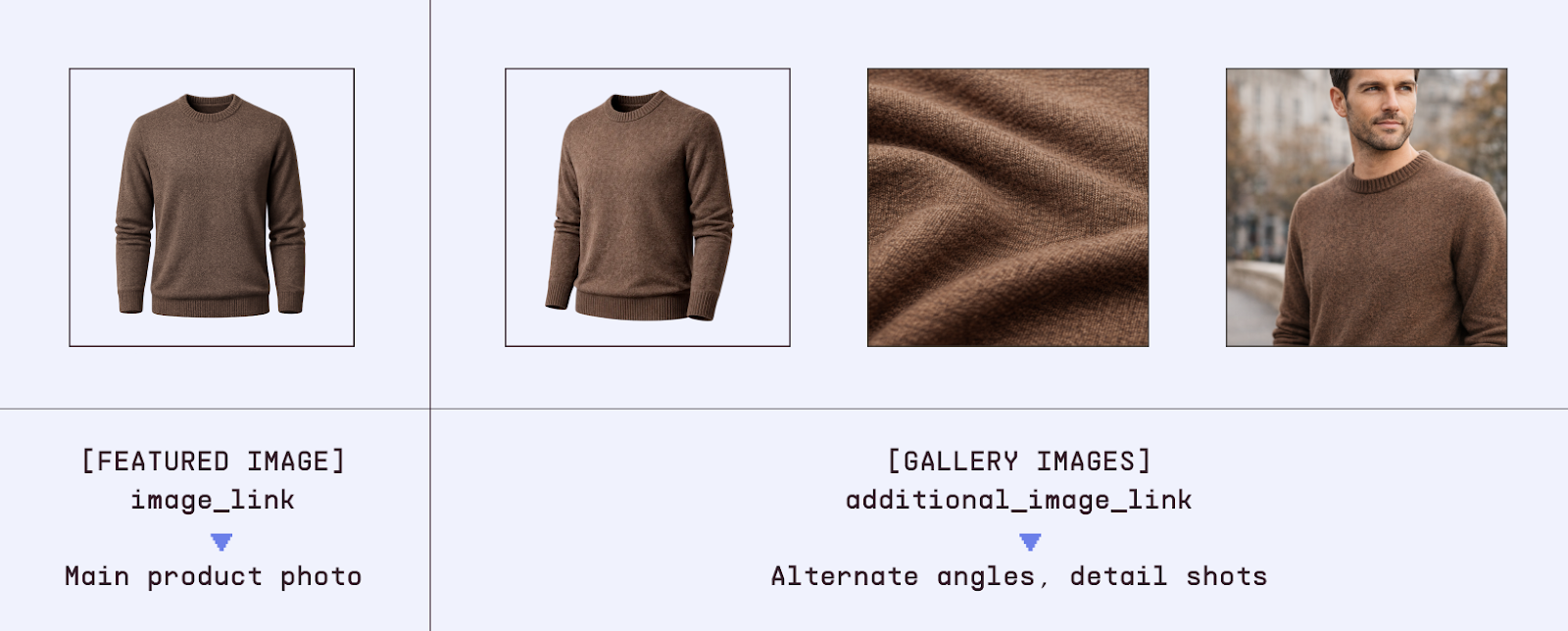
WooCommerce supports featured images and gallery images. Use both effectively:
Improve your Woocommerce feed by uploading high-quality featured and gallery images
Image Best Practices:
Minimum 800 x 800 pixels (higher resolution is better)
Use clean, consistent backgrounds
Show products clearly without lifestyle clutter
Ensure images load quickly (compress without losing quality)
Include multiple angles in gallery
Implement Custom Labels for Campaign Segmentation
Most WooCommerce feed plugins support custom labels. Use these strategically:
Margin Based Labels: Create a custom field in WooCommerce for profit margin, then map to custom labels:
custom_label_0 = "High Margin" (50%+ margin)
custom_label_0 = "Medium Margin" (30–50% margin)
custom_label_0 = "Low Margin" (under 30%)
Performance Labels: Tag products based on sales velocity:
custom_label_1 = "Best Seller" (top 20% by sales)
custom_label_1 = "New Product" (added in last 30 days)
custom_label_1 = "Slow Mover" (bottom 20% by sales)
Seasonal Labels: Categorize by seasonality:
custom_label_2 = "Holiday" (holiday-:specific)
custom_label_2 = "Summer" (summer seasonal)
custom_label_2 = "Evergreen" (year-round)
These labels enable sophisticated product feed strategies for better campaign segmentation and performance.
Keep Inventory and Pricing Synchronized
WooCommerce inventory and prices change regularly. Ensure your feed stays current:
Update Frequency:
Minimum: Daily feed updates
Recommended: Every 4–6 hours for dynamic inventory
Ideal: Real-time sync via API integration
Common Issues:
Advertising out-of-stock products wastes budget and frustrates customers
Price mismatches between feed and website create poor experiences
Stale feeds lead to disapprovals on advertising platforms
Most quality feed plugins offer scheduled automatic updates. Configure these to run at least daily.
Platform:Specific WooCommerce Feed Optimization
Google Shopping Feeds from WooCommerce
Google requires specific formatting and attributes:
Essential Elements:
Use Google Product Categories (not just your own categories)
Include GTINs for all products where applicable
Ensure prices match website exactly
Add shipping information (account:level or per-product)
Use availability values: "in stock," "out of stock," "preorder"
Pro Tip: Google Shopping drives significant traffic for most e-commerce stores. Prioritize Google feed optimization even if you advertise on multiple platforms.
Facebook/Meta Catalog Feeds from WooCommerce
Meta's catalog format is similar to Google Shopping but with different optimization strategies:
Meta:Specific Optimizations:
Use square (1–1) product images for best performance
Keep titles concise (50–80 characters)
Leverage custom labels for advanced targeting
Include multiple images via additional_image_link
Ensure landing pages load quickly on mobile
For Facebook product feeds, focus on compelling imagery and clear titles rather than keyword optimization.
TikTok Shopping Feeds from WooCommerce
TikTok's catalog advertising is newer but growing rapidly:
TikTok Feed Requirements:
High:quality vertical images (9–16 or 1–1)
Clear, benefit focused product titles
Competitive pricing (price:sensitive audience)
Fast loading landing pages optimized for mobile
TikTok catalog ads perform best with products that appeal to younger demographics and trend-conscious shoppers.
Pinterest Shopping Feeds from WooCommerce
Pinterest users have high purchase intent:
Pinterest Optimization:
Vertical images (2–3 aspect ratio ideal)
Lifestyle imagery performs well
Detailed product descriptions
Include price and availability
Pinterest product ads work especially well for home decor, fashion, beauty, and DIY products.
Common WooCommerce Feed Errors and Fixes
Error: "Missing Required Attributes"
Cause: Feed doesn't include all required fields for the target platform.
Fix: Review platform requirements and ensure your feed plugin maps all necessary WooCommerce fields. Add custom fields if needed.
Error: "GTIN Mismatch or Missing"
Cause: Product GTINs are missing or don't match the actual product.
Fix:
Add GTIN custom fields to WooCommerce
Populate with correct UPC/EAN/ISBN codes
For custom products, include identifier_exists= false
Error: "Price Format Invalid"
Cause: Prices include currency symbols or incorrect formatting.
Fix: Ensure prices follow format "XX.XX CUR" (e.g., "29.99 USD"). Remove symbols like $, €, £ from the feed output.
Error: "Image URLs Not Accessible"
Cause: Product images can't be downloaded by advertising platforms.
Fix:
Verify images are publicly accessible
Use HTTPS (not HTTP)
Check that images aren't behind authentication
Ensure CDN or hosting allows external access
Test image URLs in incognito browser
Error: "Product URL Redirects or 404s"
Cause: Product links don't work or redirect incorrectly.
Fix:
Verify all product permalinks are active
Check for redirect chains
Ensure products aren't set to "draft" or "private"
Remove any geographic restrictions
Multi-Platform Feed Strategy for WooCommerce Stores
Most successful WooCommerce stores advertise across multiple platforms. Managing separate feeds for Google, Meta, TikTok, Pinterest, Snapchat, and others quickly becomes overwhelming.
The Master Feed Approach
Instead of creating platform-specific feeds separately:
Build one comprehensive product feed with all product data
Use feed management tools to automatically format for each platform
Apply platform-specific optimizations without manual work
Update once, deploy everywhere for consistency and efficiency
This approach:
Saves time and reduces errors
Ensures consistency across platforms
Enables easier testing and optimization
Take Your WooCommerce Product Advertising to the Next Level
Creating a WooCommerce product feed is just the beginning. To maximize advertising performance across Google, Meta, TikTok, and other platforms, you need robust product feed management and the ability to create compelling product ads that convert.
Marpipe helps WooCommerce stores streamline their entire product advertising workflow:
Connect your WooCommerce store and automatically sync product data
Organize your catalog with our 100% free feed management platform
Generate platform-optimized feeds for Google, Meta, TikTok, Pinterest, and more
Create branded catalog ads that outperform generic product listings
Test and optimize to maximize ROAS across all platforms
There isn’t a one‑size‑fits‑all answer. If you’re only running Google Shopping ads, WooCommerce Google Feed Manager is solid. If you’re advertising across multiple platforms, CTX Feed or a feed management platform like Marpipe (yep, it’s free) will save you headaches. They give you flexibility and platform‑specific optimization for Google, Meta, TikTok, and more.
How often should I update my WooCommerce product feed?
At least once a day. That keeps your prices and inventory fresh. If your stock moves fast or you’re running promos, every 4–6 hours is smarter. Real‑time sync via API is the gold standard. Stale data? That’s how you end up with disapproved ads and annoyed customers.
Can I use the same WooCommerce feed for Google and Facebook?
You can, but you shouldn’t. Both platforms can read the same format, but they each have their own quirks. The smarter move is to keep one master feed and let a feed management tool spin off platform‑optimized versions automatically. That way Google gets what it needs, Facebook gets what it needs, and you don’t have to babysit it.
Do WooCommerce variable products need special handling in feeds?
Yep. Each variation (size, color, whatever) should usually be its own item with a unique ID, price, and attributes. That’s how you get better targeting and stronger performance, especially on Google Shopping and Meta. The good news: most decent feed plugins handle this for you.
How do I add GTINs to existing WooCommerce products?
Install a plugin that adds GTIN fields (like “Product GTIN for WooCommerce”), then edit each product to drop in the right UPC, EAN, or ISBN code. Got a big catalog? Bulk import via CSV. And if your products don’t have GTINs, think handmade or custom items, just set identifier_exists= false in your feed.
Boost ad performance in days with a 7 day free trial.











.png)


.jpg)