Google Merchant Center Feed: The Complete Guide to Product Feed Optimization
Master your Google Merchant Center Feed with this comprehensive guide. Learn setup, optimization, troubleshooting, and best practices to maximize Google Shopping performance.
A GMC (Google Merchant Center) Feed is the base of all your Google Shopping campaigns. It's a data file that shows Google all it needs to knoq about your products including titles, prices,, and shipping details.
With Google Shopping being a big portion of visibility for e-commerce brands, it means that optimizing your feed can make or break a business. This guide will cover everything you need to know about building and maintaining a great Google Merchant Center Feed.
What is a Google Merchant Center Feed?
A Google Merchant Center Feed is a file containing all your product information formatted according to Google's Product Data Specification. This feed powers:
Google Shopping Ads: Product listings that appear in Google search results
Performance Max Campaigns: Google's automated campaign type for shopping
Free Product Listings: Organic product placements in the Shopping tab
YouTube Shopping: Shoppable product integrations on YouTube
Display Network: Product remarketing across Google's display network
The feed acts as your product catalog's interface with Google. Every time you update your feed, Google processes the changes and adjusts how your products appear across those surfaces.
Setting Up Your Google Merchant Center Feed
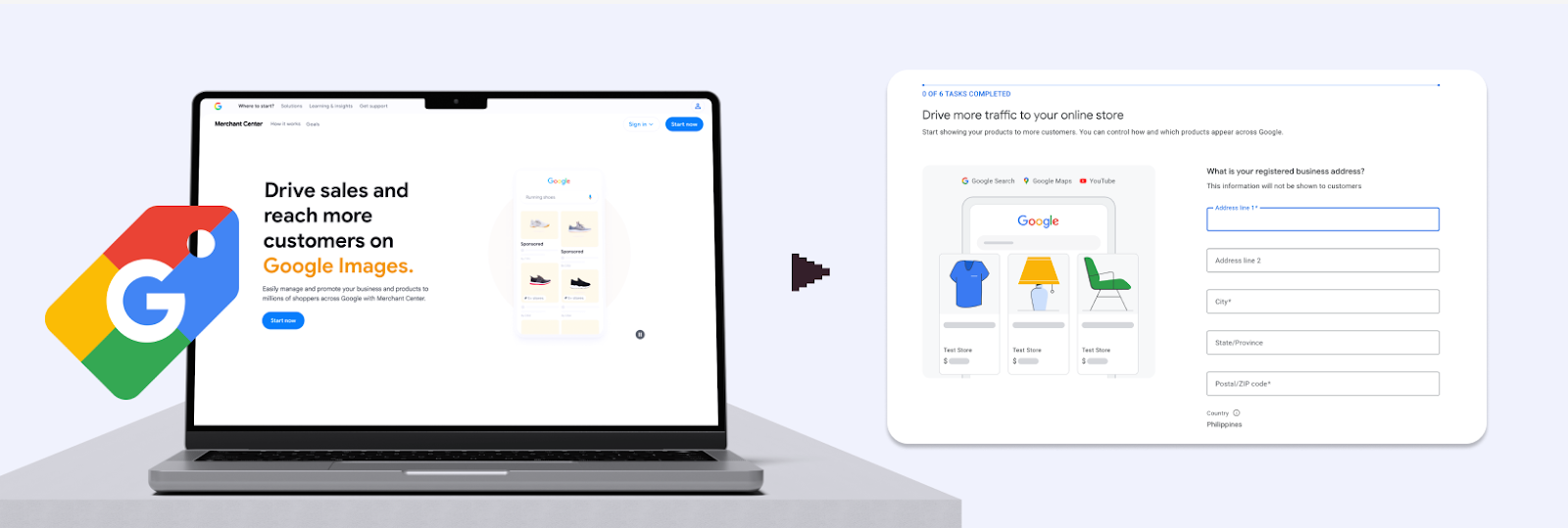
Step 1: Create Your Google Merchant Center Account
sale_price_effective_date: When sale pricing is active
item_group_id: Groups product variants (different sizes/colors of same item)
shipping for product-specific shipping costs
custom_label_0-4: Your own classification system
Step 3: Create Your Feed
Option A: Manual Feed (Google Sheets)
Best for small catalogs under 100 products, for testing, or for learning
In Merchant Center, go to "Products" > "Feeds"
Click "+ Feed" and select your target country
Choose "Google Sheets" as method
Use Google's template with all required columns
Fill in your product data
Submit for review
Option B: Scheduled Fetch (Recommended)
Best for medium to large catalogs on standard e-commerce platforms
Export your product data in XML, TXT, or CSV format
Upload to a publicly accessible URL (e.g., https://yourstore.com/product-feed.xml)
In Merchant Center, create a new feed
Choose "Scheduled fetch" and provide your feed URL
Set fetch frequency (daily recommended)
Google will automatically fetch updates on your schedule
Option C: Content API
Best for big catalogs that need constant updates or custom integrations
Use Google's Content API for Shopping to programmatically manage products. This allows real-time inventory updates, immediate price changes, and custom automation workflows.
Option D: Feed Management Platform
Best for: Multi-platform advertising and diverse product catalogs
Feed management tools like Marpipe simplify the entire process by connecting to your e-commerce platform, automatically formatting your data, catching errors, and deploying to multiple advertising platforms including Google, Bing, Meta, TikTok, and Pinterest. Marpipe's feed management is 100% free, making it an easy way to organize and optimize your product data.
Step 4: Submit and Validate
After creating your feed:
Google processes your products (usually within a few hours)
Review the "Diagnostics" tab for errors and warnings
Fix any issues preventing products from being approved
Wait for product approval (typically 3–5 business days for first submission)
Monitor ongoing performance and feed health
Google Merchant Center Feed Optimization Best Practices
Optimize Product Titles for Search
Your product title is the most important attribute on your feed. Google's algorithm heavily favors titles when matching products to search queries.
Example for Apparel: "Nike Air Max 270 React Men's Running Shoes - Black/White, Size 10"
Example for Home Goods: “KitchenAid 5-Quart Stand Mixer - Artisan Series - Empire Red - 325W”
Title Best Practices:
Front-load the most important keywords
Include brand name (unless it's your own store brand)
Add specific attributes: color, size, material, model number
Avoid promotional text ("SALE!", "Free Shipping")
Don't use ALL CAPS
Use correct grammar and punctuation
Test different title formats and track performance
Master Google Product Categories
The google_product_category attribute helps Google understand what you're selling and show your products for relevant searches. Google provides a taxonomy with thousands of category options.
Best Practices:
Use the most specific category possible
Don't use "Apparel & Accessories" when "Apparel & Accessories > Shoes > Athletic Shoes > Running Shoes" is available
Check competitor products to see which categories perform well
Test different categories for products that fit multiple options
Use numeric category IDs in your feed for accuracy
Common Google Merchant Center Feed Errors
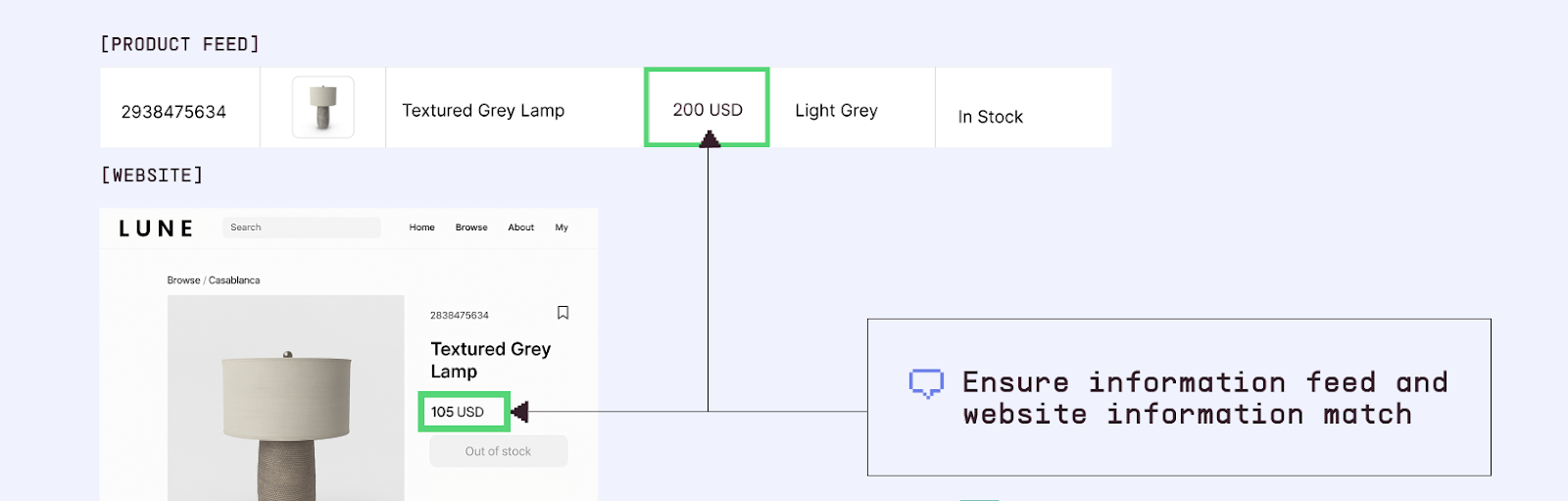
Disapproval: "Misrepresentation of self or product"
Cause: Information in your feed doesn't match your website, or product pages have missing/misleading information.
Fix:
Make sure feed prices exactly match website prices
Verify product titles and descriptions accurately represent the product
Check that landing pages load quickly and show the correct product
Remove promotional popups that obscure product information
Align feed data with the product page information on your website
Warning: "Missing value [gtin]"
Cause: Products in certain categories require GTINs (UPCs, EANs, ISBNs), but your feed doesn't include them.
Fix:
Add GTINs for all products where they exist
For handmade, custom, or vintage products without GTINs, include identifier_exists: false
For apparel, if GTIN isn't available, ensure you include brand, mpn, color, and size
Error: "Invalid value [price]"
Cause: Formatting doesn't match requirements or contains invalid characters.
Fix:
Use format: XX.XX CUR (e.g., "29.99 USD")
Don't include currency symbols ($, €, £)
Use only numbers and one decimal point
Ensure price matches your website exactly
Error: "Incorrect URL"
Cause: URL doesn't work, redirects incorrectly, or isn't publicly accessible.
Fix:
Test all URLs in an incognito browser window
Ensure URLs don't require login or have geographic restrictions
Use clean URLs without tracking parameters (add tracking in Google Ads instead)
Fix any redirect chains or broken links
Use HTTPS (not HTTP)
Warning: "Consider providing additional images"
Cause: Product only has one image when multiple would improve performance.
Fix:
Add 2 to 4 extra images showing different angles
Include lifestyle images for your product category
Show product details and features
Use high-resolution images (800+ pixels)
Advanced Feed Optimization Strategies
Dynamic Price and Availability Updates
Inventory and pricing change constantly. Stale feed data leads to disapprovals and poor customer experience. Implement real-time or near-real-time updates.
High:frequency fetches: Update your feed every hour or more often
Content API: Push changes immediately as they happen
Automatic inventory sync: Connect your e-commerce platform directly to Merchant Center
A/B Test Product Titles and Descriptions
Just like you'd test ad creative, test different product feed attributes:
Create two feeds with different title structures
Split traffic between campaigns using each feed
Measure CTR and conversion rate differences
Roll out winning title format across all products
Optimize for Local Inventory Ads
If you have physical retail locations, enable Local Inventory Ads to show products available in nearby stores:
Set up local feeds with store:specific inventory
Include store_code and quantity attributes
Enable "Local Inventory Ads" in Merchant Center settings
Drive foot traffic with "Available nearby" search placements
Monitor Feed Health Daily
Set up a feed health monitoring routine:
Check Merchant Center "Diagnostics" tab daily
Monitor product disapprovals and fix immediately
Track warning trends that could become errors
Review performance by product attribute in Google Ads
Set up automated alerts for critical feed errors
Integrating Your Google Merchant Center Feed with Multi-Platform Advertising
The challenge? Each platform has different feed requirements, naming conventions, and optimization strategies. Maintaining separate feeds is time-consuming and error-prone.
Marpipe's feed management platform makes this seamless. Connect your product catalog once, organize and enrich your data, then deploy optimized feeds to Google, Bing, Meta, Pinterest, TikTok, and other platforms:all from one dashboard. And because our feed management tool is completely free, you can streamline your entire product feed operation without any additional cost.
What's the difference between Google Merchant Center and Google Ads?
Google Merchant Center stores and controls your product data (your feed), while Google Ads builds and runs the campaigns using that product data. Think of Merchant Center as your product database and Google Ads as your advertising platform.
How often should I update my Google Merchant Center Feed?
For most e-commerce brands, daily updates are the minimum. If you have change frequently you inventory, prices, or run flash sales, update multiple times per day using scheduled fetches (hourly) or the Content API (real-time). Outdated feed data leads to disapprovals and poor customer experience.
Can I use the same feed for Google Shopping and other platforms?
While many platforms accept Google Shopping feed format as a base, each platform has their own requirements. The best approach is to master feed and using feed management tools to format and optimize it for each platform.
Why are some of my products disapproved?
Common reasons for disapprovals include price mismatch, missing required attributes (GTIN, MPN, brand), incorrect product categorization, policy violations (restricted products), low image quality, or landing page problems. Check the "Diagnostics" tab in Merchant Center for specific disapproval reasons and fixes.
Do I need a Google Merchant Center Feed if I only run Performance Max campaigns?
Yes. Performance Max campaigns for shopping still require a Google Merchant Center Feed. The feed provides all product information Performance Max uses to create ads automatically. Even though Performance Max is more automated than traditional Shopping campaigns, it still pulls product data from your Merchant Center feed.
Boost ad performance in days with a 7 day free trial.











.png)


.jpg)